Generative AI workflows
Imagining patent drafting as a cloud-based, agentic AI workspace, and rebuilding Rowan Patents' desktop tool from the ground up as the sole product designer on the project.
Clarivate provides trusted intellectual property data, software, and expertise that help companies drive innovation and protect critical IP assets. Rowan Patents software brings together every element of a patent application (specification, claims, and drawings), cutting down laborious busywork like part numbering and claim support tracking.
My mandate: lead the end-to-end design of Rowan Cloud, an AI platform replacing the legacy desktop tool with an agentic drafting experience.
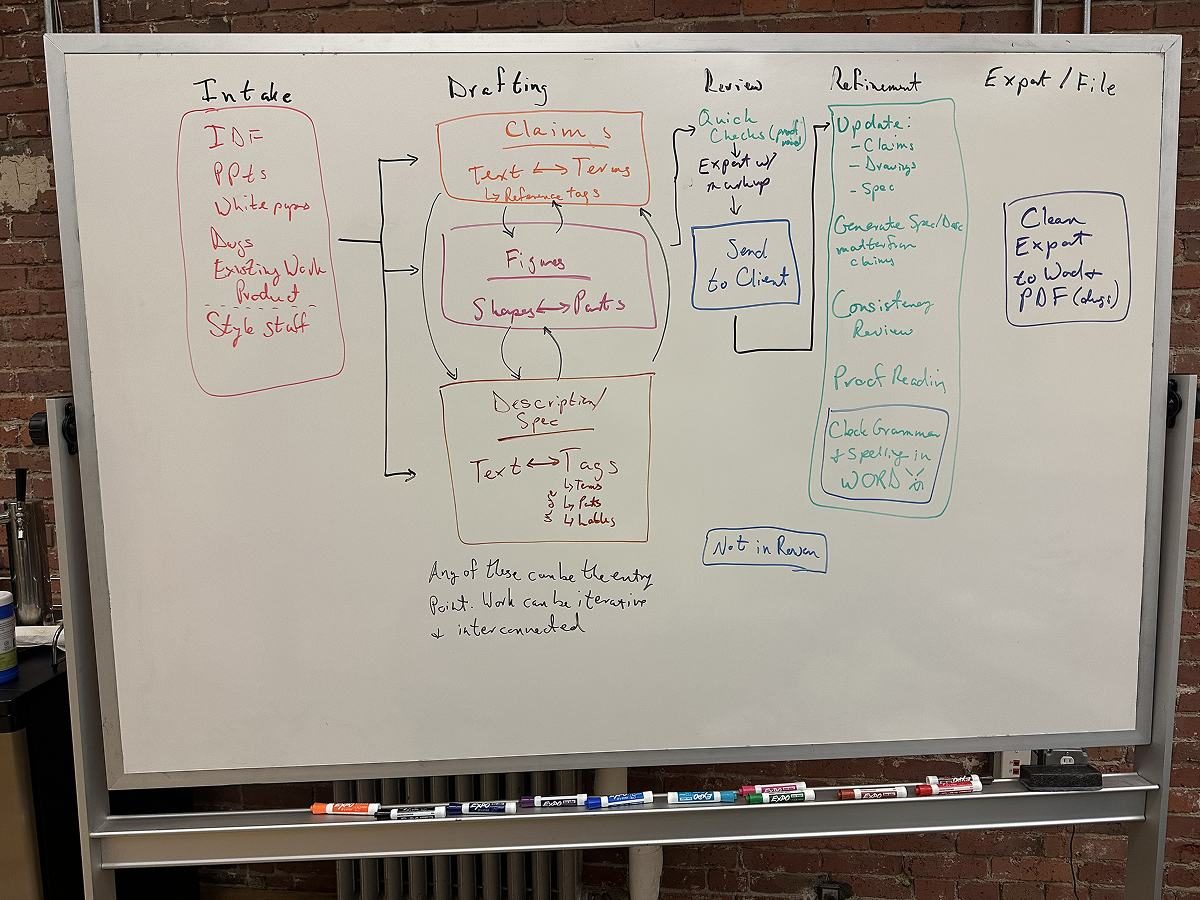
Rowan's existing desktop architecture couldn't meet the level of AI-assisted drafting practitioners had started to expect. Competitors like Solve Intelligence, DeepIP, and Patlytics were resetting the bar for speed, automation, and accessibility. The drafting process itself wasn't changing, but the expectation for how fast a usable first draft could appear was moving fast.
The real question: could Rowan's architecture, information design, and interaction model support an AI-native workflow?
Strengths
- Integrated drawing, figure, and reference-numeral tools tied directly to claims and spec
- Local or cloud AI deployment choice for firms wanting tight control
- Backed by Clarivate's broader IP data and management ecosystem
Weaknesses
- AI assistance was task-based only, with no agentic, multi-step workflow
- No Microsoft Word integration; drafting confined to its own desktop interface
- Didn't learn from past filings; limited firm-specific customization
Opportunities
- Extend agentic capabilities to match connected competitor workflows
- Leverage Clarivate's broader IP intelligence to add analytics
- Deepen Word-adjacent interoperability to reduce firm switching friction
Threats
- Competitors moving faster toward agentic, end-to-end AI workflows
- Well-funded rivals investing heavily in AI R&D
- Firms standardizing on Word- or browser-native platforms over desktop tools
Two audiences had to share one workspace:
- Internal practitioners: Clarivate's internal drafting services team, who draft patents on behalf of clients as a paid service.
- External customers: patent law firms and in-house patent attorneys who draft and manage their own applications.
I owned user research and synthesis, ideation, prototyping, usability testing, and visual design across the entire project, partnering directly with a product manager and engineering team on scope and delivery.
- Cloud migration: the product had to move from a desktop application to a cloud solution, a fundamental shift in architecture, not just a visual refresh.
- Generative AI & agentic features: the product had to feel meaningfully faster and more automated without sacrificing the accuracy patent professionals depend on.
- Trust and accuracy: the product had to maintain the quality and accuracy patent professionals depend on, even as more of the drafting work moved to AI.
My Process
I benchmarked Rowan's desktop experience against emerging AI-native competitors. The clearest opportunity: practitioners wanted a fast, credible first draft generated from whatever inputs they already had on hand, not a rigid intake form.
That shaped four core use cases: IDF only, IDF + existing claims, IDF + drawings, and IDF + claims + drawings. This mattered because the product had to flex around whatever a practitioner already had, rather than forcing everyone through the same intake.
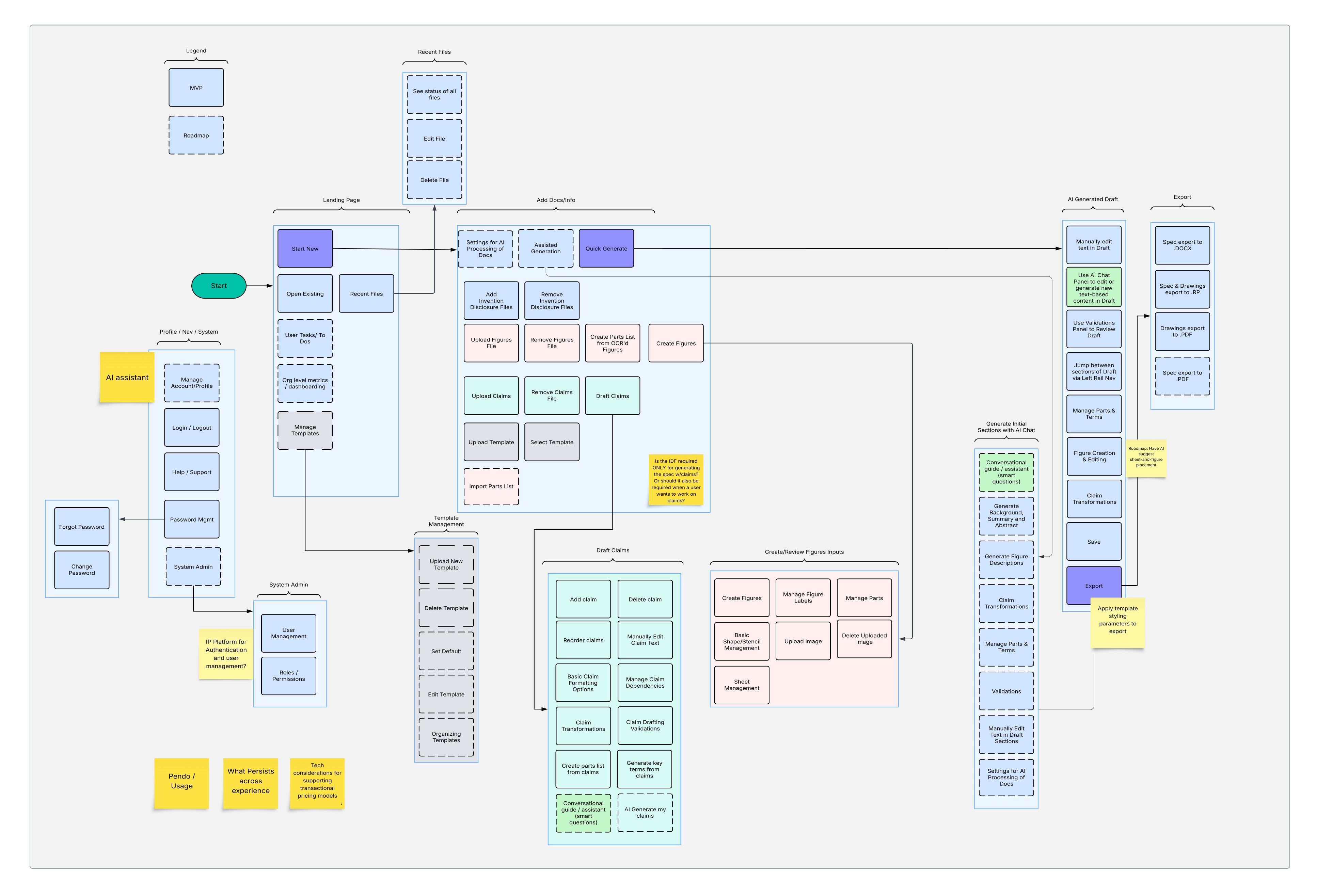
Using the four use cases, I mapped the information architecture and task flows for the new platform, then built rough wireframes to test the shape of the experience with users and stakeholders, in particular the wizard's steps and how imported material (specs, disclosures, drawings) would be handled. Revisions followed rounds of usability feedback.
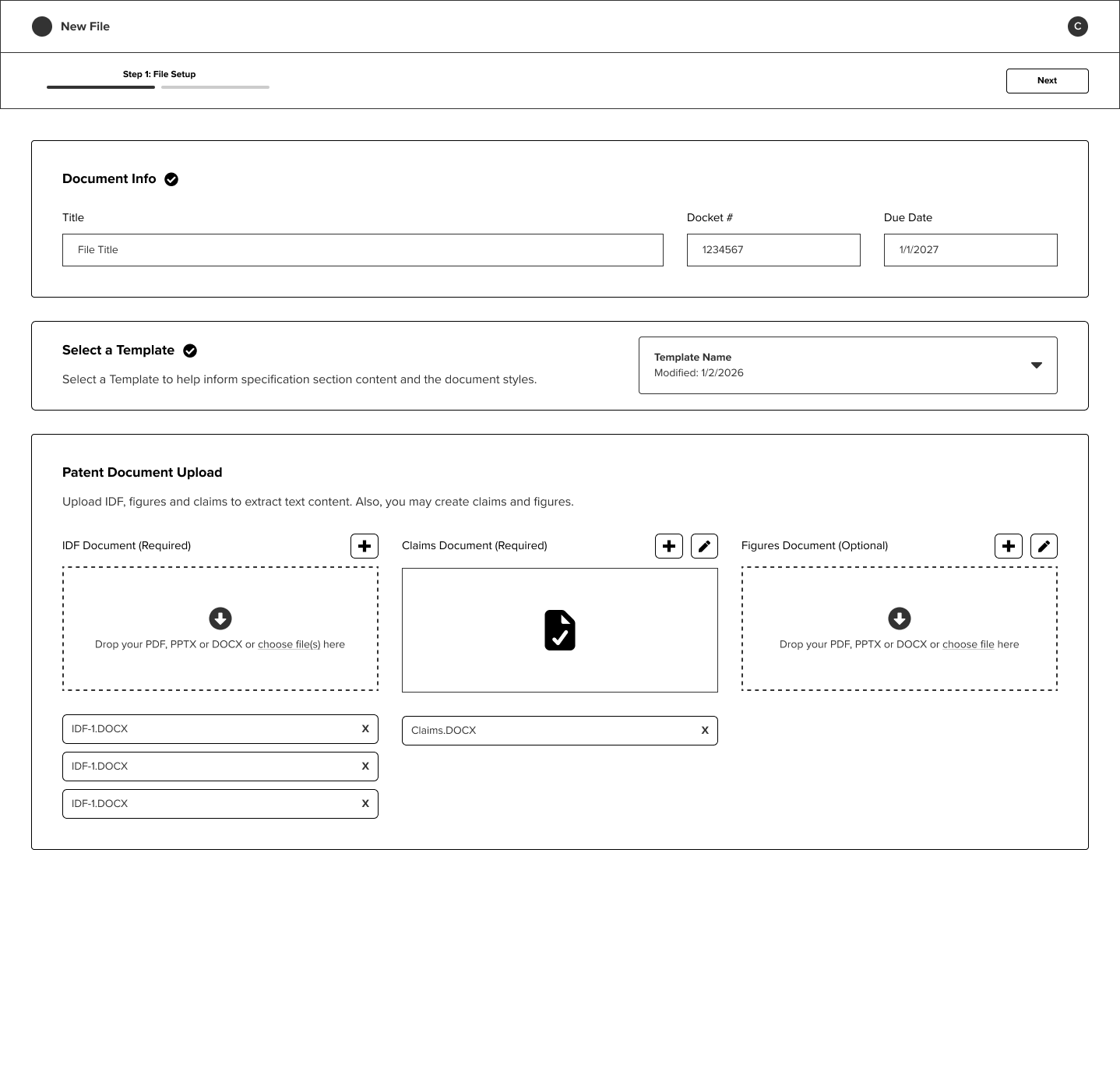
A simple workflow: New File → Prepare Inputs → Generate. New File captured document info, template selection, and an optional upload of the IDF, claims, and figures, all on one screen. Prepare Inputs let practitioners build from a blank state or edit imported claims and figures through a tabbed interface. Generate produced the rest of the application and dropped the practitioner into a two-tab workspace.
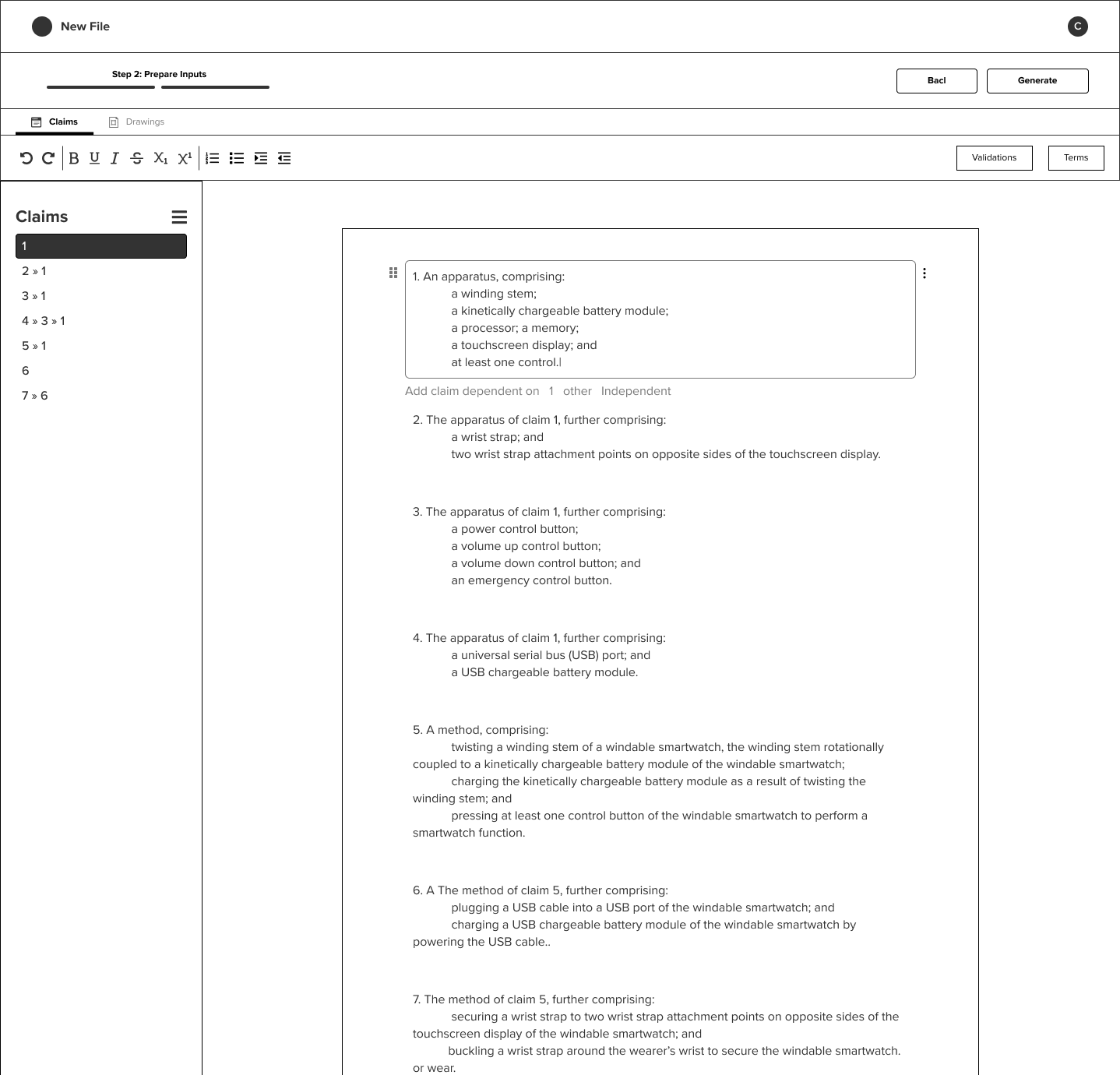
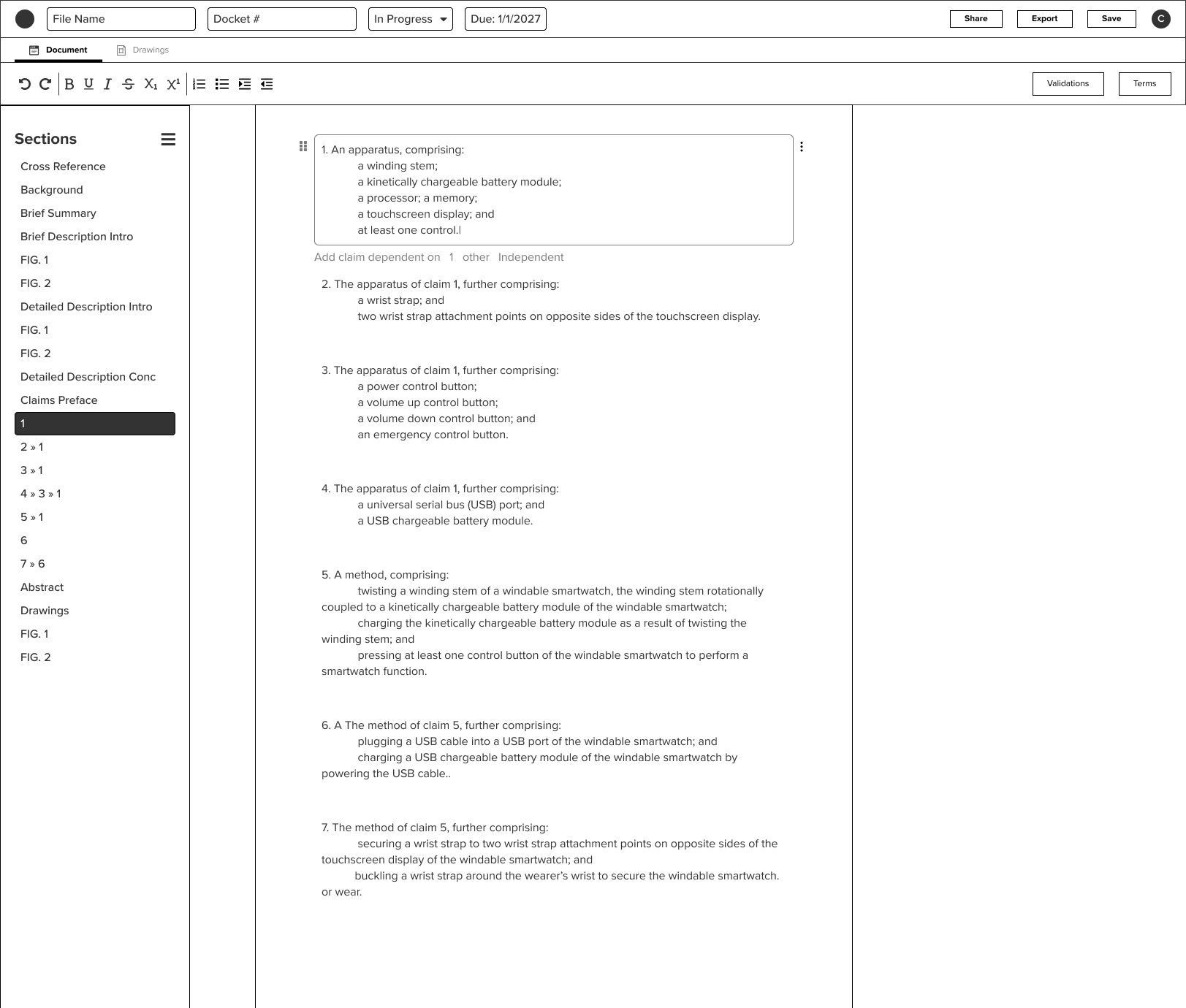
Version 2
After user and SME review, "Prepare Inputs" split into sequential steps. Claims and figures import moved to their own steps; IDF upload stayed in Project Setup. Each step let practitioners start from scratch or import a file; either path landed in the same editors.
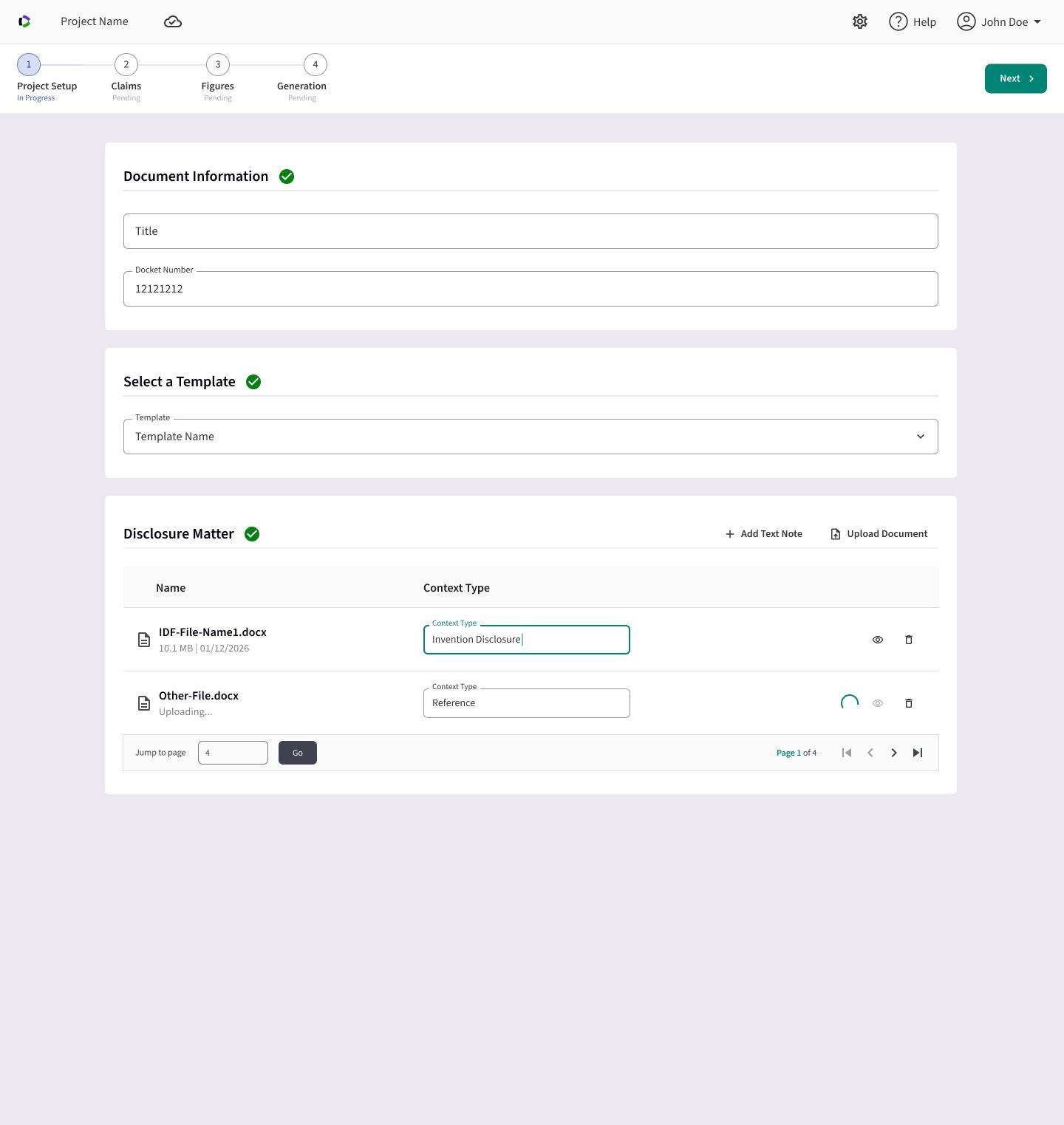
Version 3
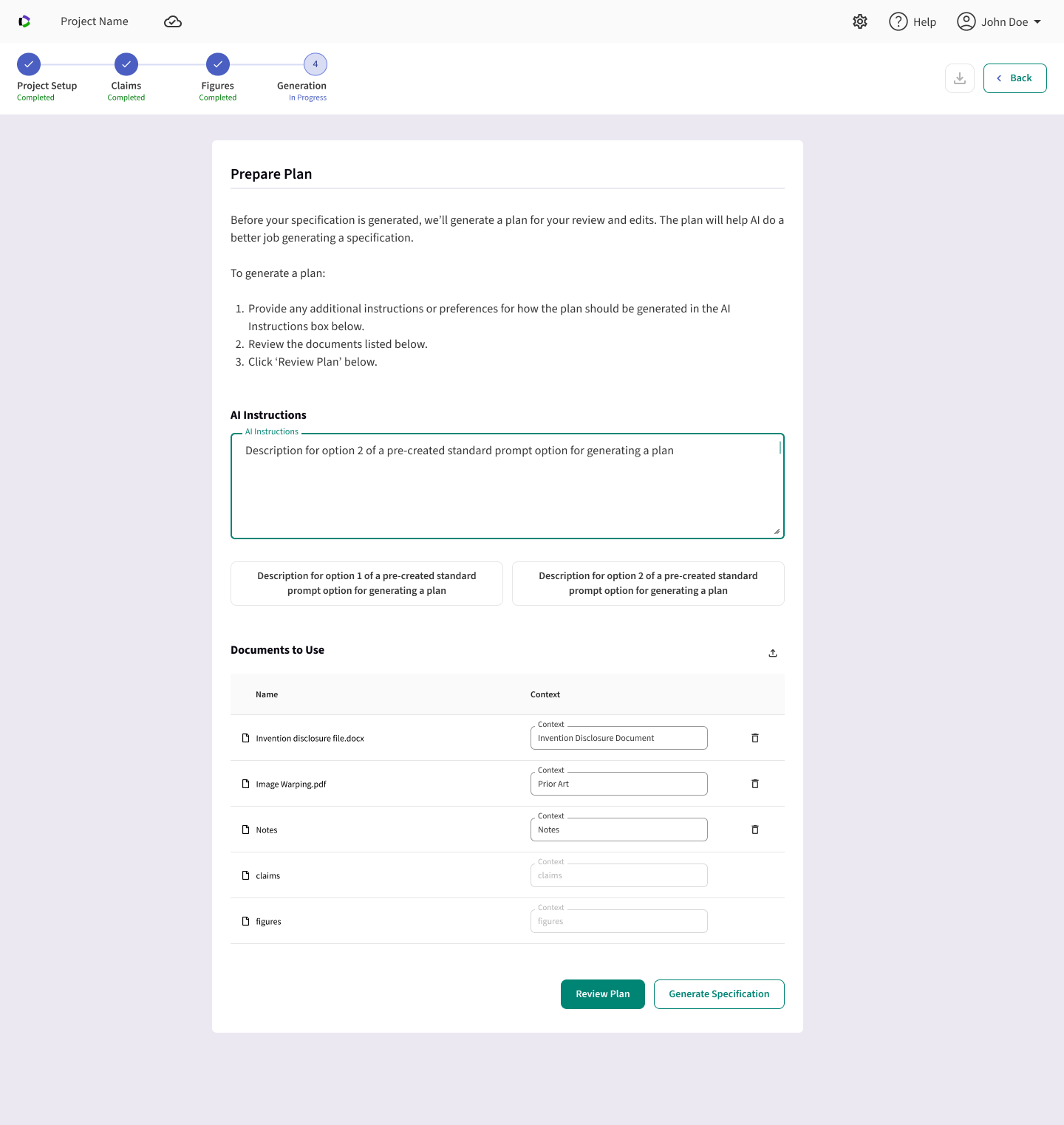
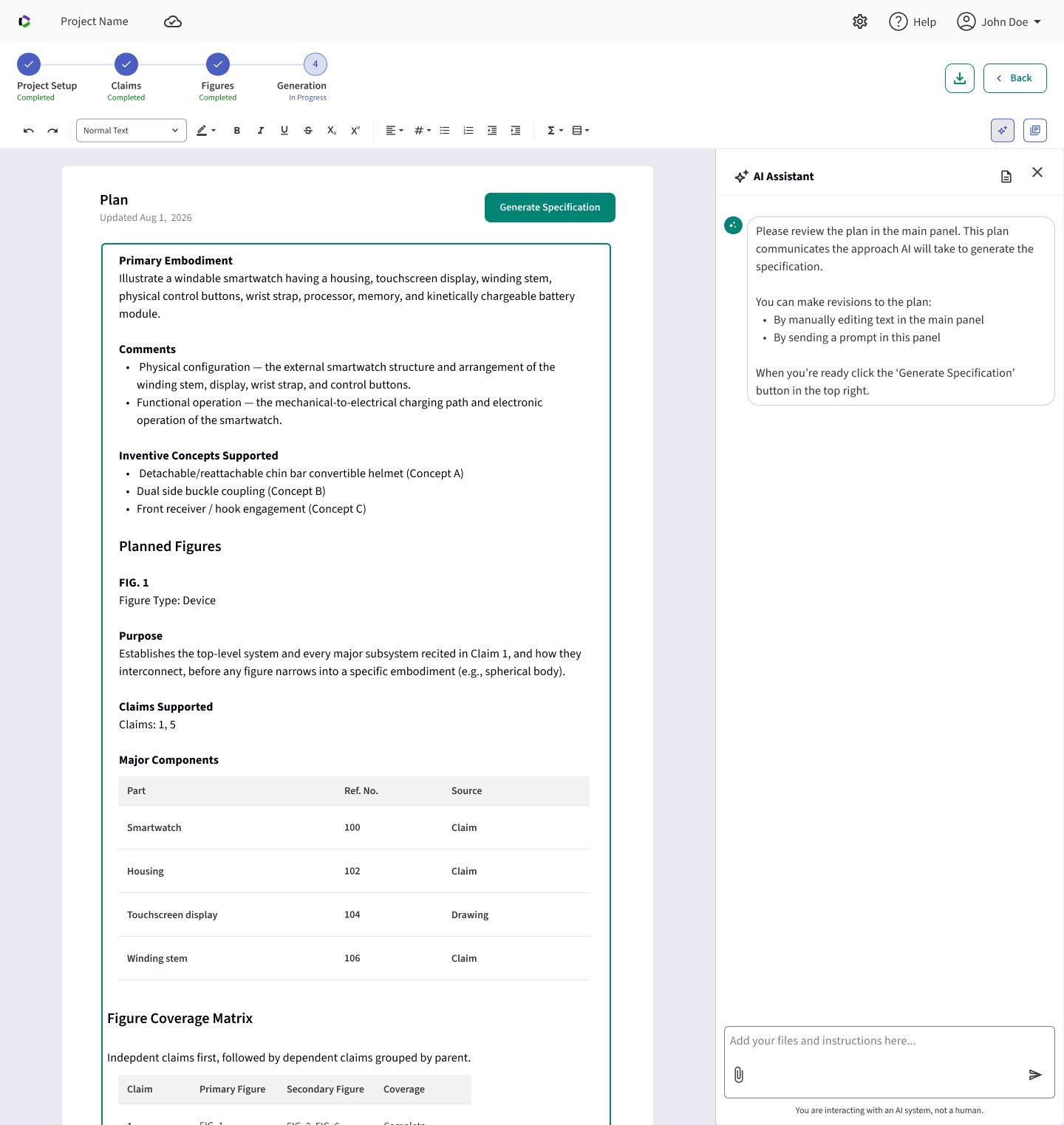
A Plan step before generation, and agentic editing inside the workspace. Feedback showed practitioners wanted to review and customize the AI's instructions before committing to a full generation, so a Plan step let them review a reference document and send special instructions before generating. Once generated, the Plan could be refined before clicking Generate.
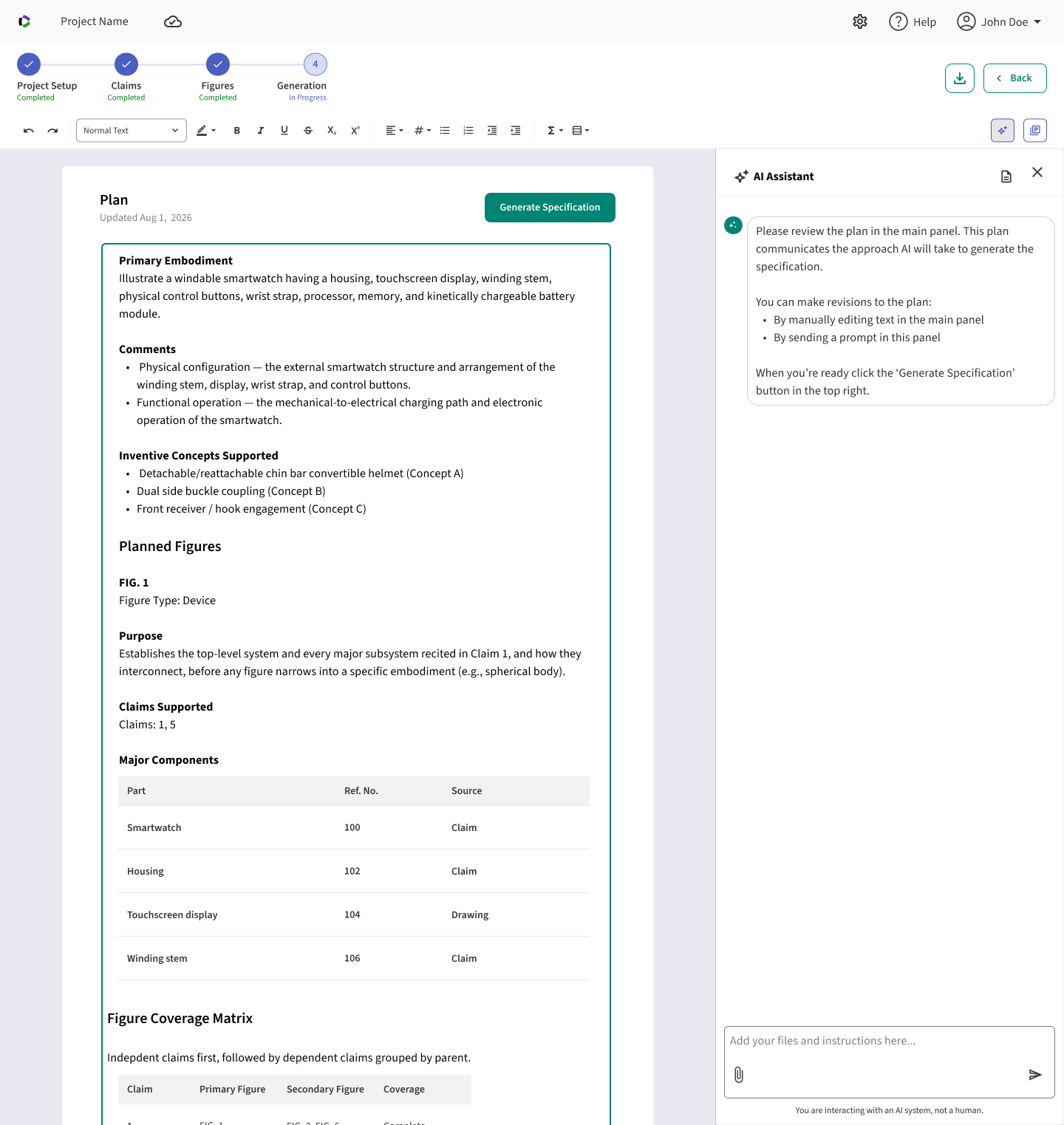
Alongside that, a right-side AI chat panel was added to both the Claims editor and the main application text editor, with read-and-write access to edit the document directly, mid-task progress feedback so multi-step edits never read as a silent pause, and approval required before any change landed.
The Finished Product
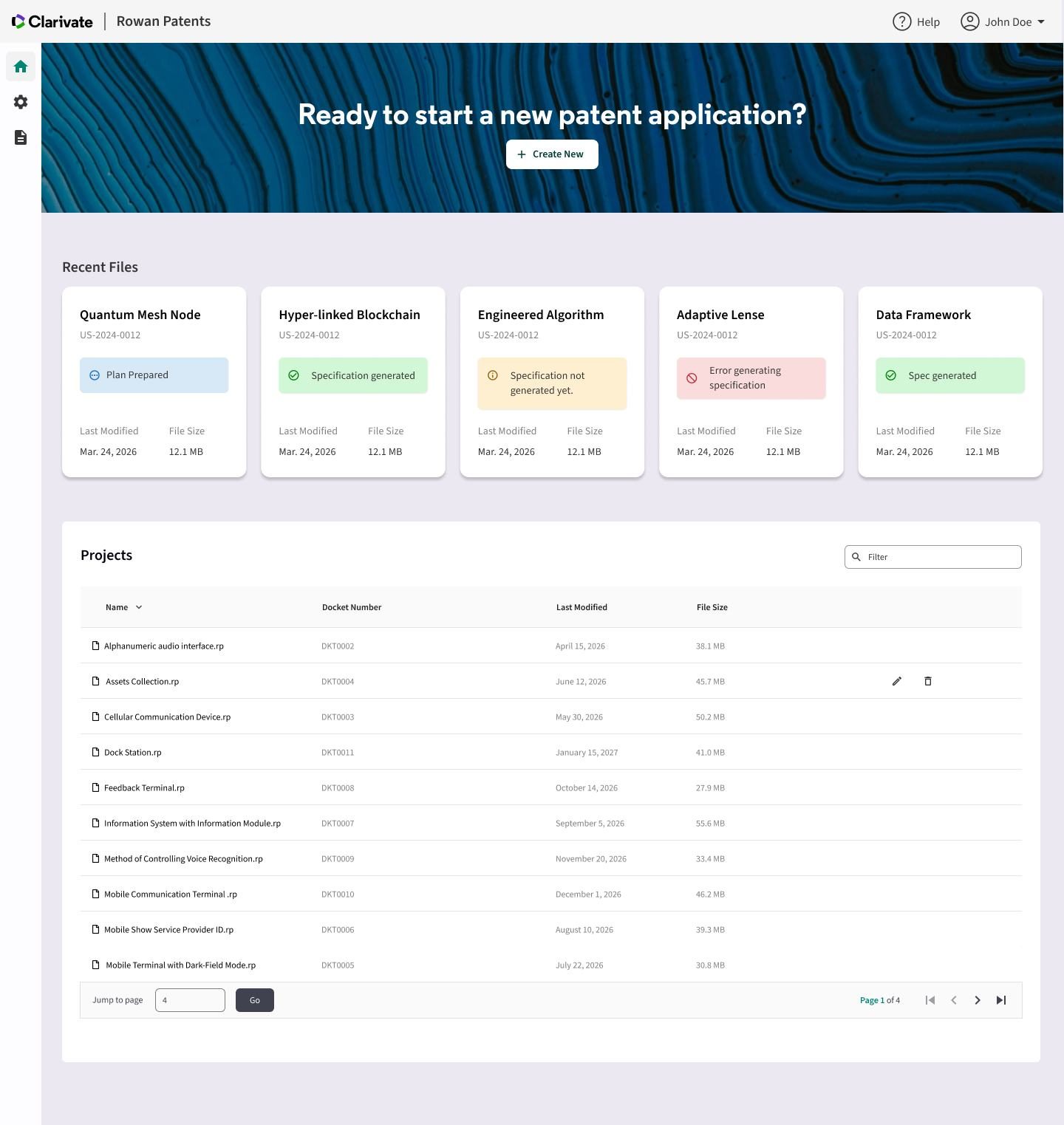
The landing page is a persistent home for a practitioner's work: a hero prompt to create a new file, a strip of recently touched files for jumping back in, and a searchable, sortable table of every project in the workspace. Templates and account settings each live on their own subpage off the landing page, so file management stays front and center while configuration stays one click away.
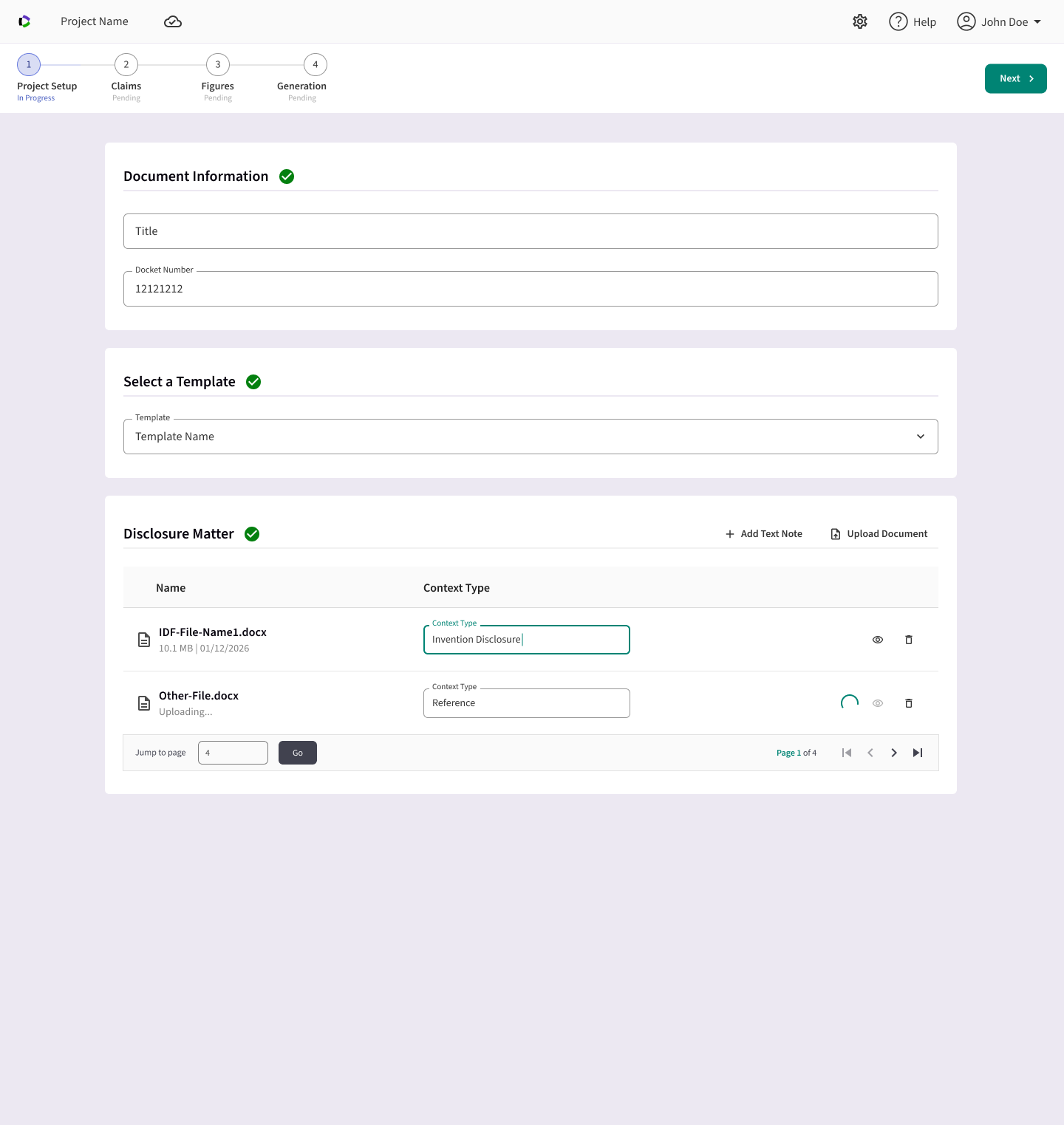
The Project Setup step is where practitioners add project details, select a template, and import disclosure matters: the one piece of Version 1's single screen that stayed put as its own step.
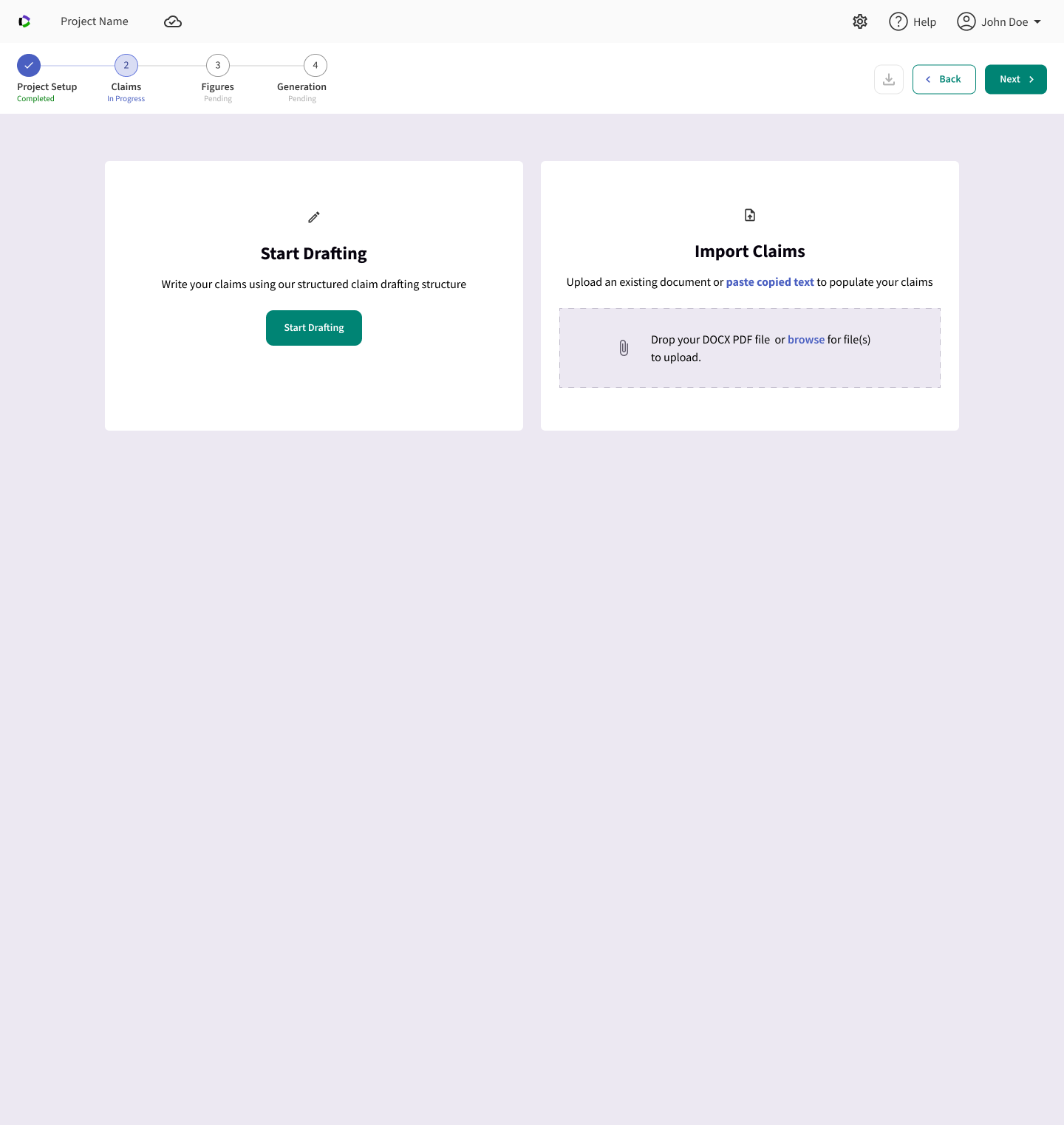
Claims and figures each got their own step, and each step offered the same choice: import an existing document or start from scratch. In the Claims step, practitioners could upload a DOCX or PDF (or paste copied text) to populate their claims automatically, or open the structured claim drafting editor and start writing.
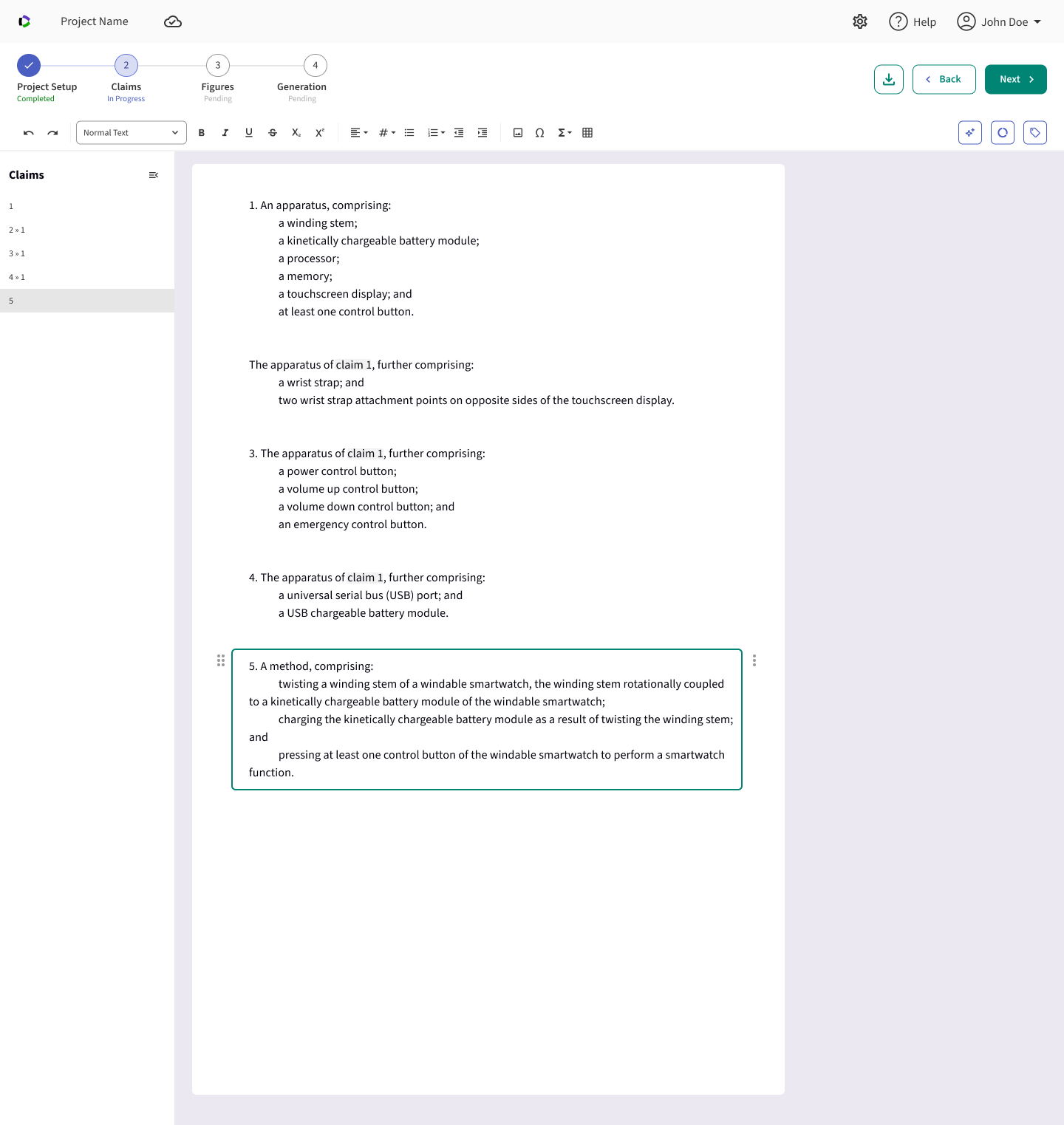
Numbering and tracking claim dependencies had been time-consuming for users due to the cascading impact of a single edit; claim tags took that burden off them automatically, renumbering and reflowing dependent claims as they edited.
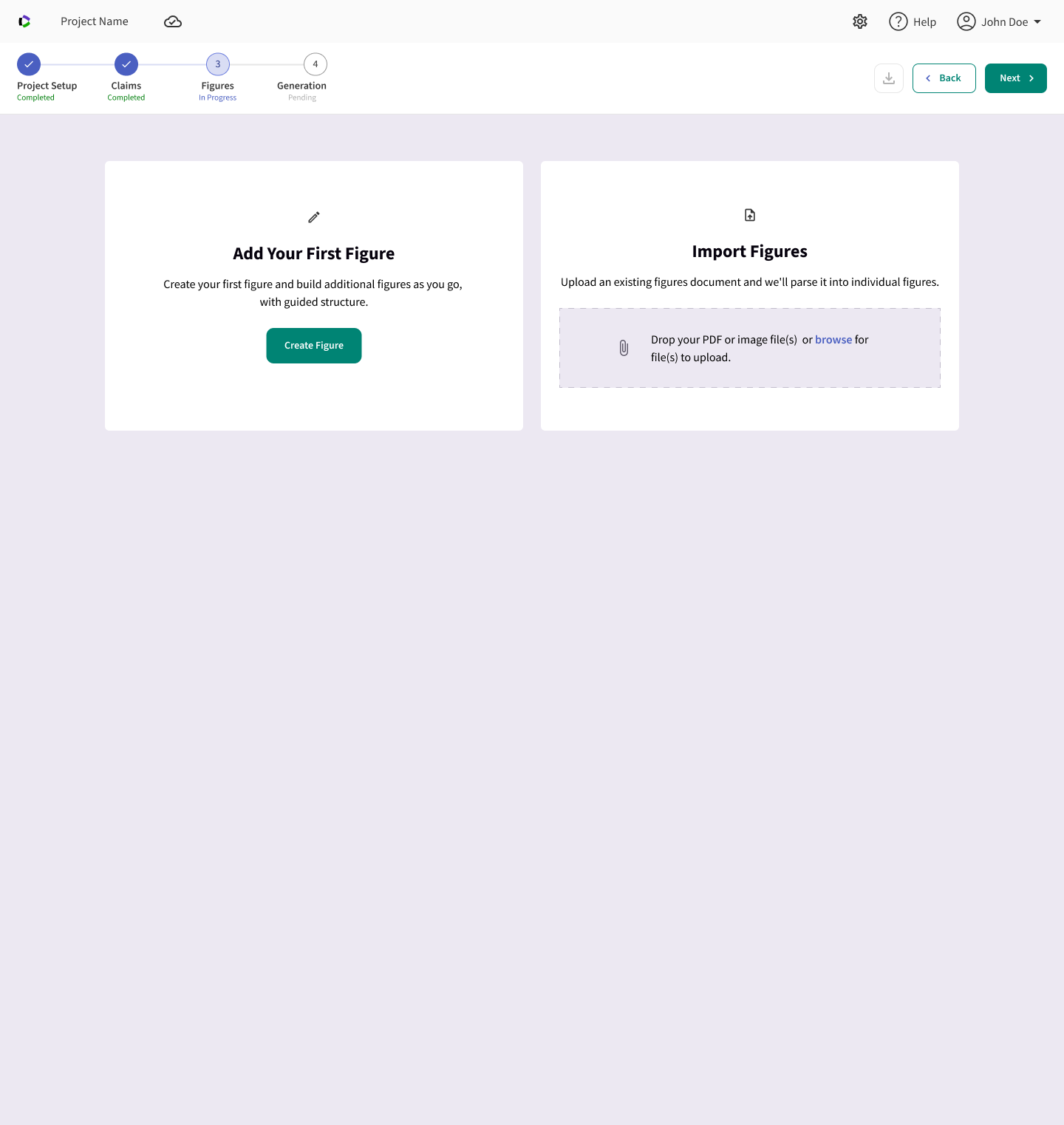
The Figures step worked the same way: import an existing figures document to have it parsed into individual figures, or create a first figure and build out from there with guided structure.
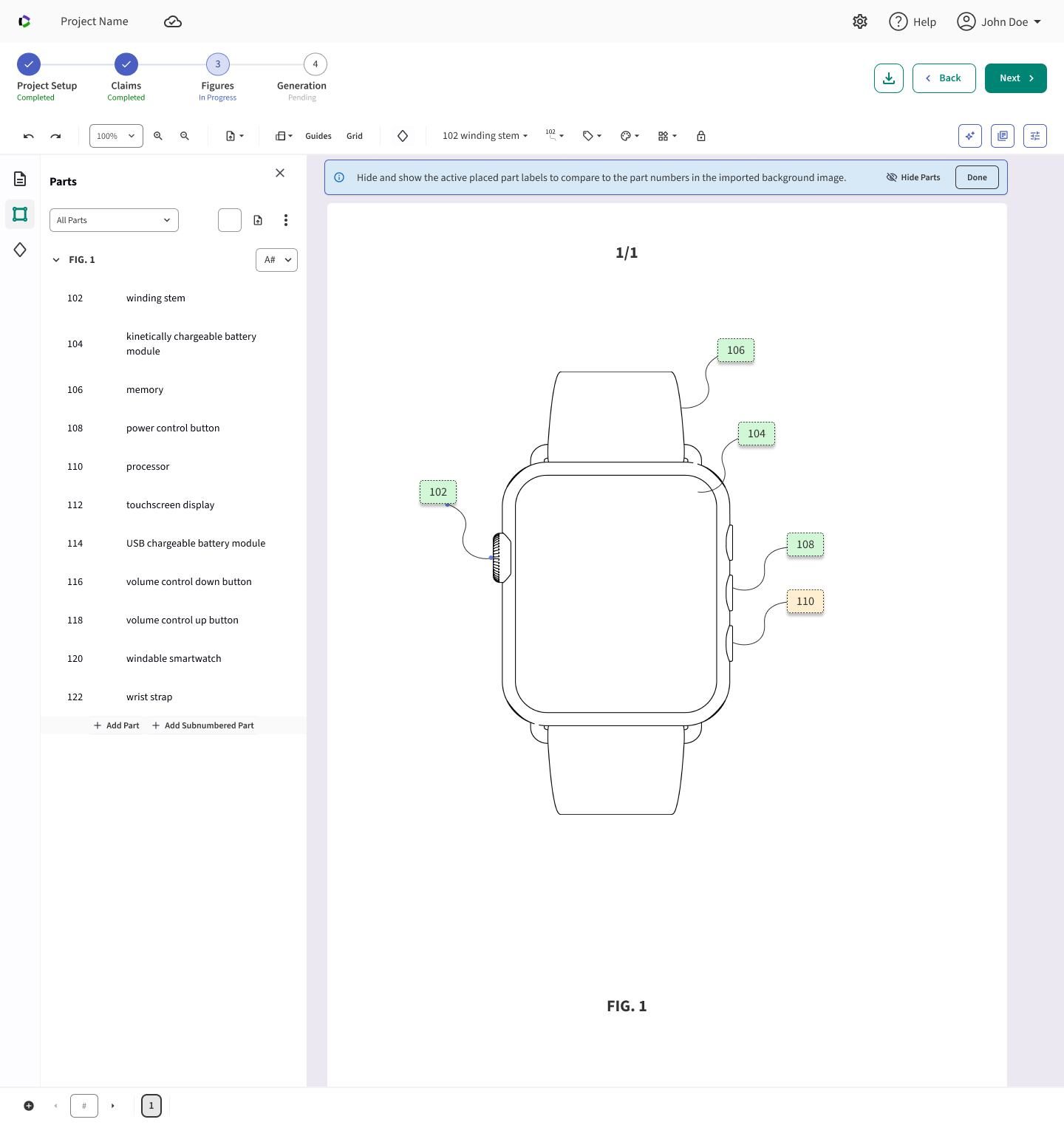
For figures, parts are numbered and named once in a shared list, then placed directly onto the figure, eliminating the manual part-renumbering busywork that used to run throughout the application. A lightweight toggle also let practitioners compare their placed part labels against an imported reference image before the numbering reached the spec.
To generate high-quality patent application text, practitioners needed the chance to shape the approach before the AI committed to it. The Plan step summarized the primary embodiment, inventive concepts, planned figures, and a claim-to-figure coverage matrix, reviewable and editable either by hand or by prompting the AI panel, before a single word of the specification was generated.
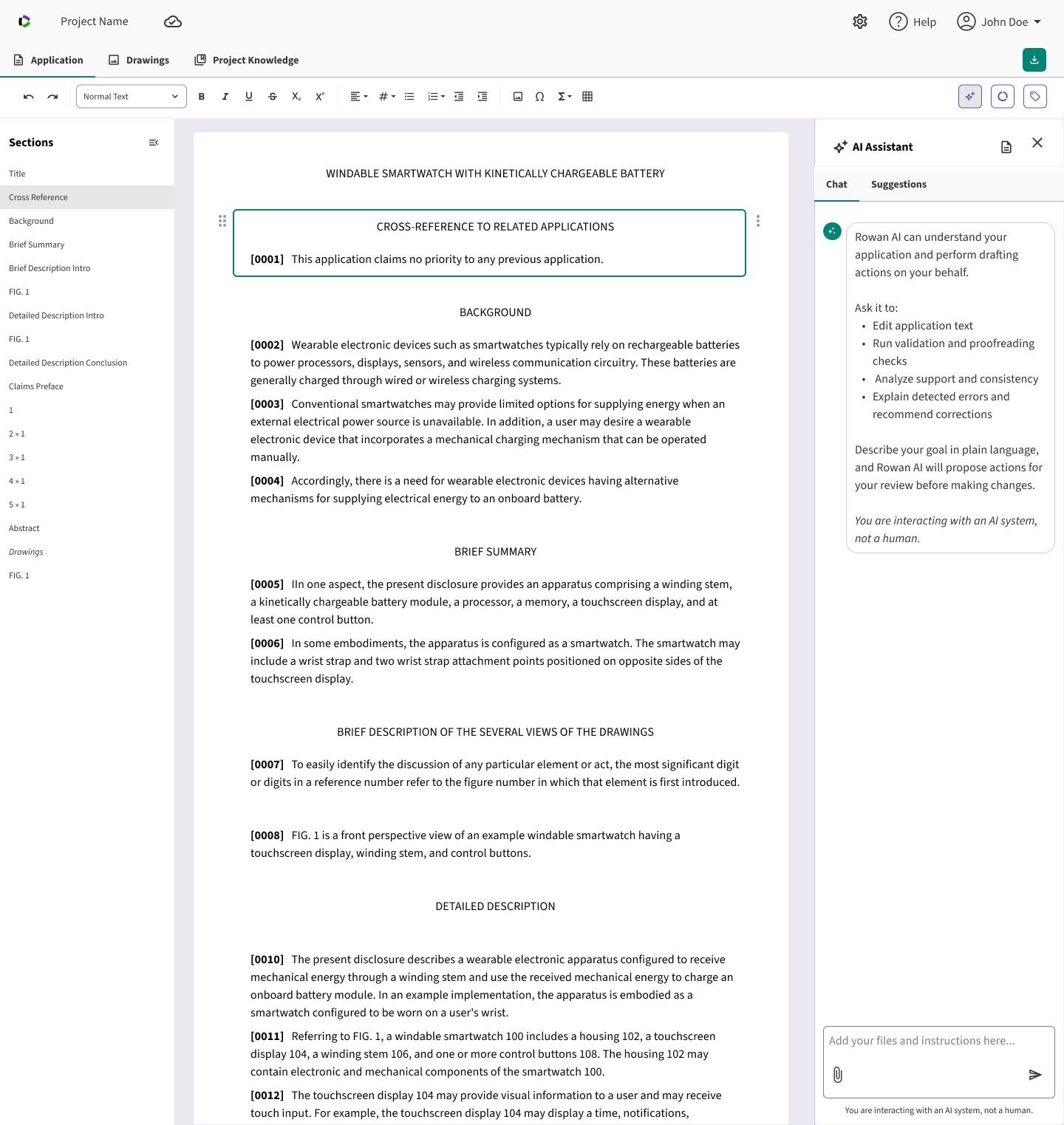
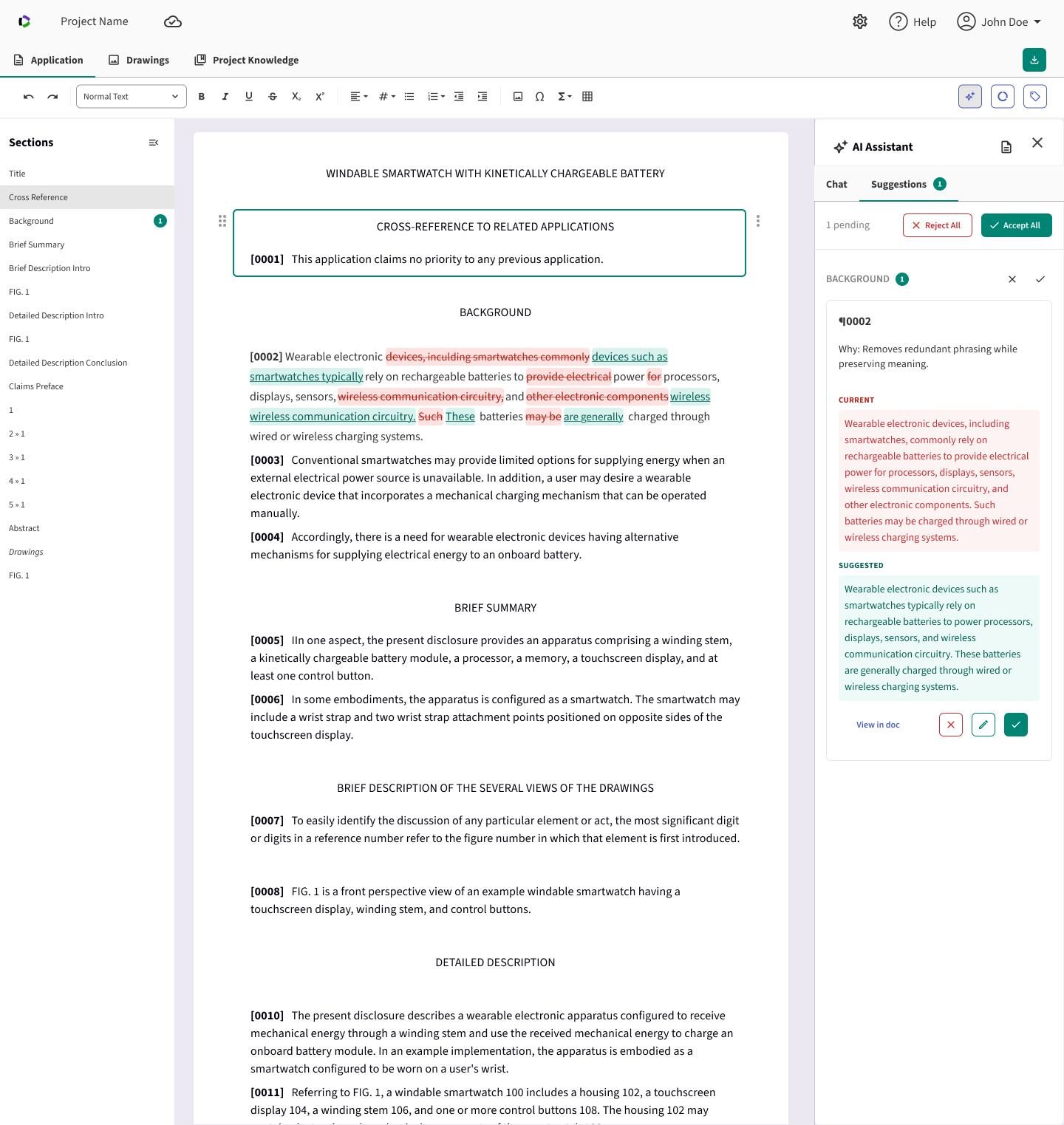
Once the plan was approved, generation produced the full specification directly into the same editor practitioners would use to refine it: sections listed down the left, an AI Assistant panel on the right ready to edit application text, run validation and proofreading checks, analyze support and consistency, or explain detected errors and recommend corrections.
Practitioners could prompt the AI Assistant to make edits directly and review every suggested change as a reviewable diff before accepting it. Nothing landed in the document silently: proposed edits appeared inline with the current and suggested text side by side, and could be accepted, edited further, or rejected individually or all at once.
Reduced complexity
A noticeably shorter learning curve than the legacy desktop tool, replacing scattered file-system navigation with one organized flow.
Addressed the core need
Speed, flexibility, and accuracy in patent drafting: exactly what customers told us they needed most.
Built for scale
A structured data model under the AI layer keeps drafts accurate, rather than relying on AI output alone like several competitors do.
A modern, approachable UI
Replacing a dense, file-based tool with an approachable interface was itself a major part of the value delivered.
"Adding AI" to a professional tool isn't a feature decision. It's an interaction-design problem.
The features that mattered most weren't the ones that automated the most. They were the ones that made the system's reasoning visible at every step, so practitioners could trust a faster process without giving up control.